Step 1: Verify Flight Controller Compatibility: Before installation, ensure that your flight controller (FC) and its firmware support the UBLOX GPS protocol.
- Some older versions of Betaflight firmware may not be compatible with UBLOX GPS.
- It is recommended to update your FC to the latest firmware to ensure proper functionality.
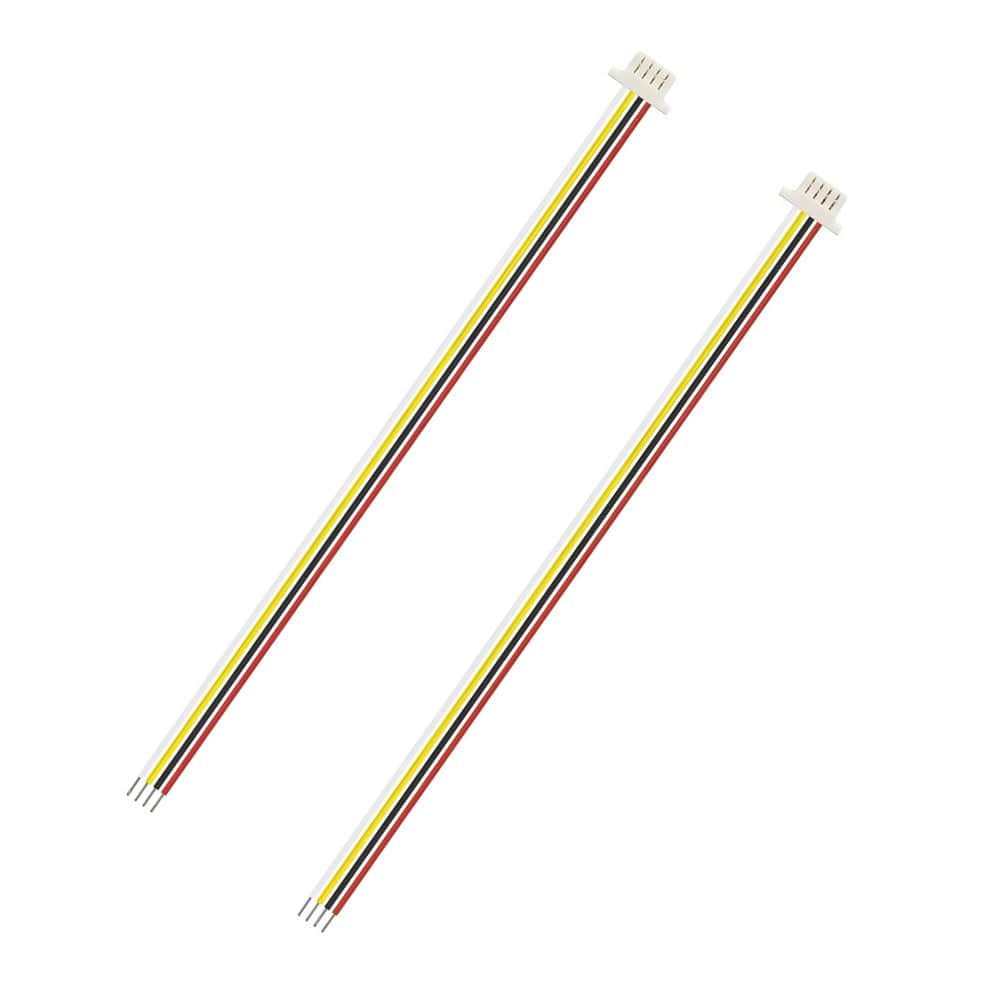
Step 2: Wiring the BeeID M10Q GPS Module: Proper wiring is essential for accurate data transmission between the BeeID module and your flight controller. Follow these steps:
- Connect the BeeID TX (Transmit) pin to the FC RX (Receive) pin on the same UART port.
- Connect the BeeID RX (Receive) pin to the FC TX (Transmit) pin on the same UART port.
- Ensure 5V power and ground are correctly connected to provide stable operation.
Step 3: Configuring the UART Port: After wiring, configure the corresponding UART port in your flight controller firmware:
- Set the baud rate to 115200bps to match the module’s default speed.
- Enable GPS mode on the selected UART port.
- Save and reboot your flight controller to apply the changes.
Step 4: Confirm GPS Functionality: Verify that the module successfully acquires GPS satellites.
- In Betaflight, iNAV, or Ardupilot, check the GPS status page for satellite lock and position updates.
- Ensure that RemoteID broadcasting is active and functional via BLE. You can use the Drone Scanner App to check the broadcasting information.